Day #42: IAM Programmatic access and AWS CLI
IAM Programmatic access
In order to access your AWS account from a terminal or system, you can use AWS Access keys and AWS Secret Access keys.
AWS CLI
The AWS Command Line Interface (AWS CLI) is a unified tool to manage your AWS services. With just one tool to download and configure, you can control multiple AWS services from the command line and automate them through scripts.
The AWS CLI v2 offers several new features including improved installers, new configuration options such as AWS IAM Identity Center (successor to AWS SSO), and various interactive features.
Task-01
- Create AWS_ACCESS_KEY_ID and AWS_SECRET_ACCESS_KEY from AWS Console.
Task-02
- Setup and install AWS CLI and configure your account credentials
Create IAM User
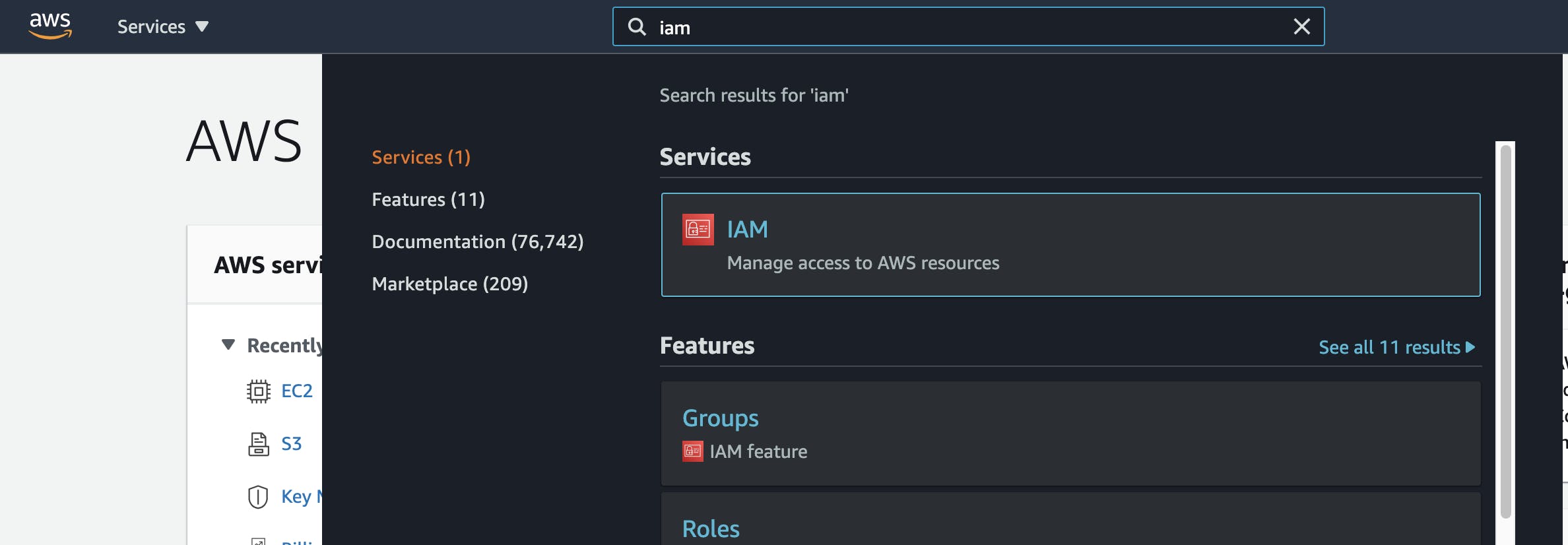
Login to AWS Console and navigate to the IAM service.
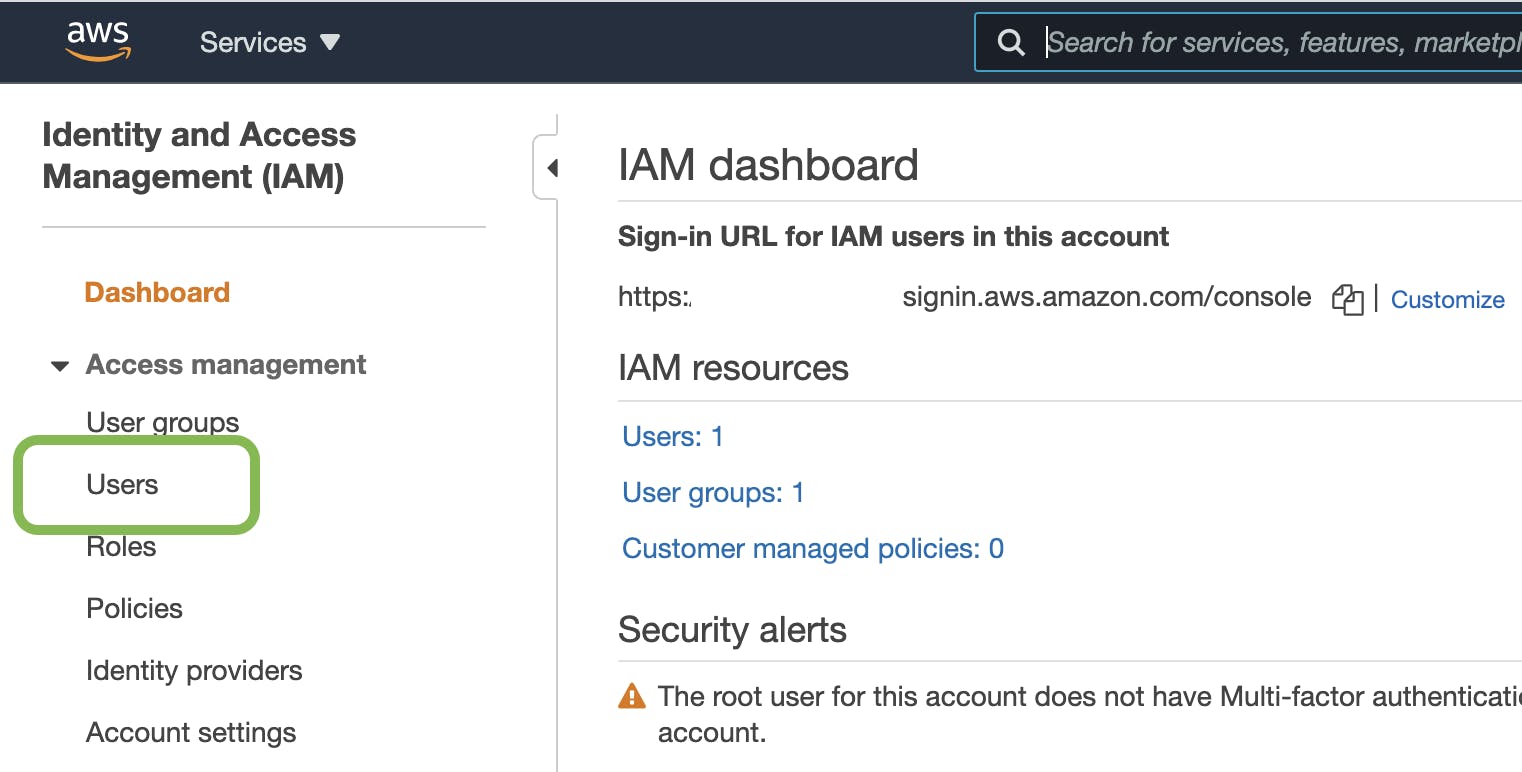
On the IAM Dashboard, Select the Users section and click the Add User button.
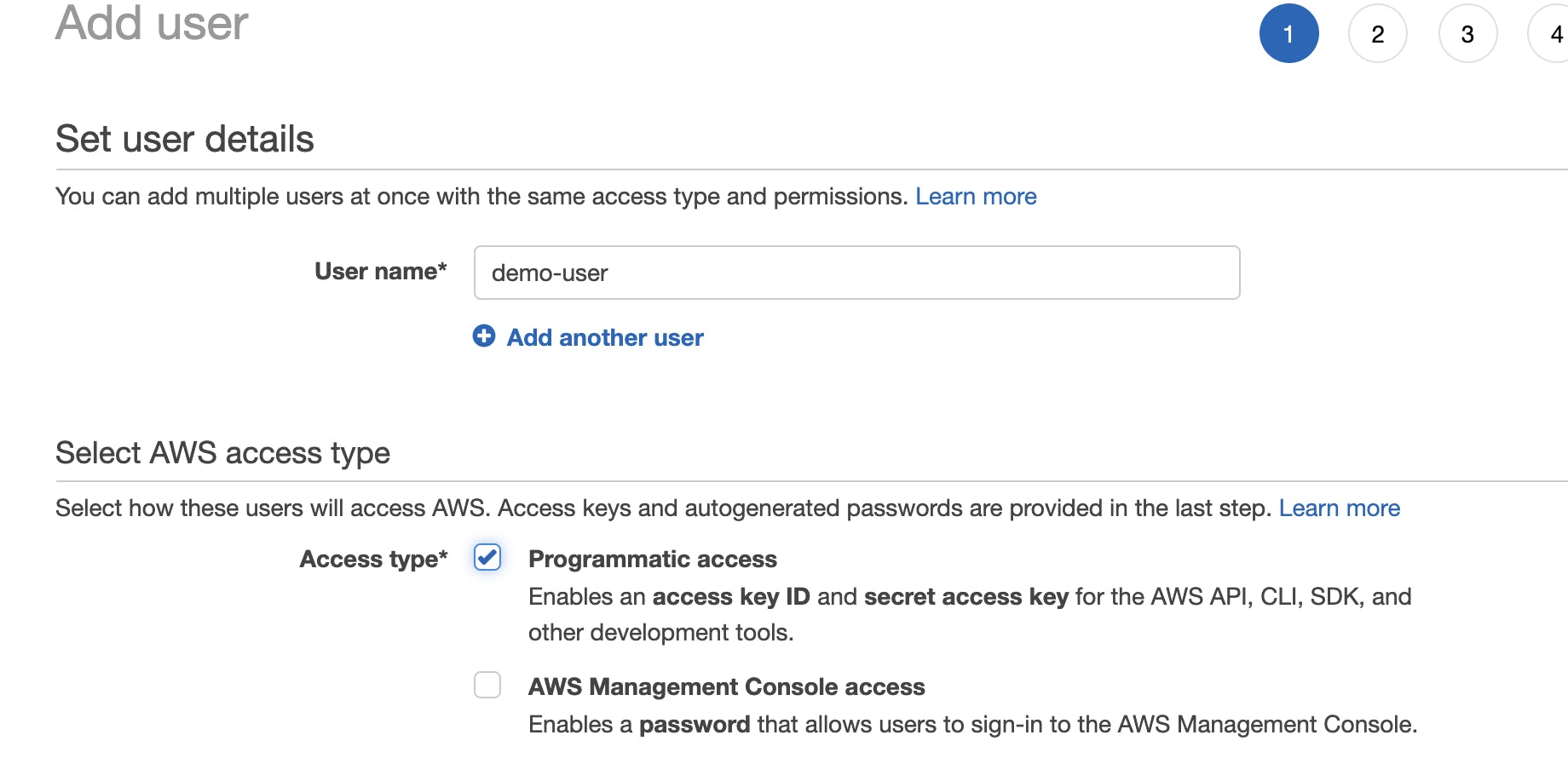
Enter an appropriate user name (for this post, I have created a user with the name demo-user) and enable Programmatic Access. Click the Next: Permissions button.
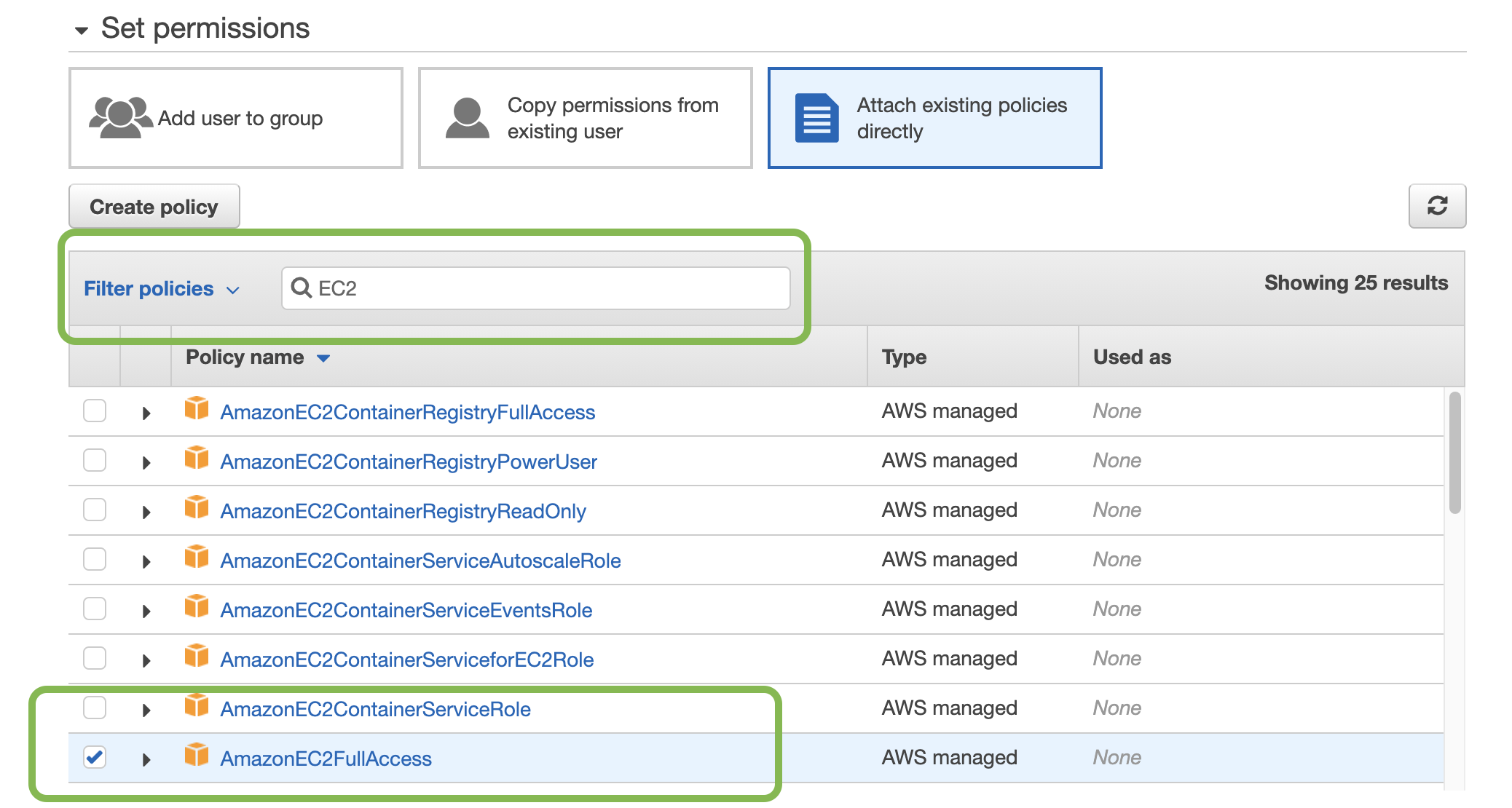
Now we need to provide a set of relevant permissions to this new user. These permissions will provide the capability to perform certain actions in AWS(e.g. Create EC2 instance, Create IAM Roles / Policies, or even Admin privileges)
For the sake of this demo, we will grant EC2 Full Access to our user demo-user. Select Attach existing policies directly and provide a filter as EC2. Select Policy name AmazonEC2FullAccess from the list.
Click Next: Tags button. For this demo, we will skip this section. Click the Next: Review button.
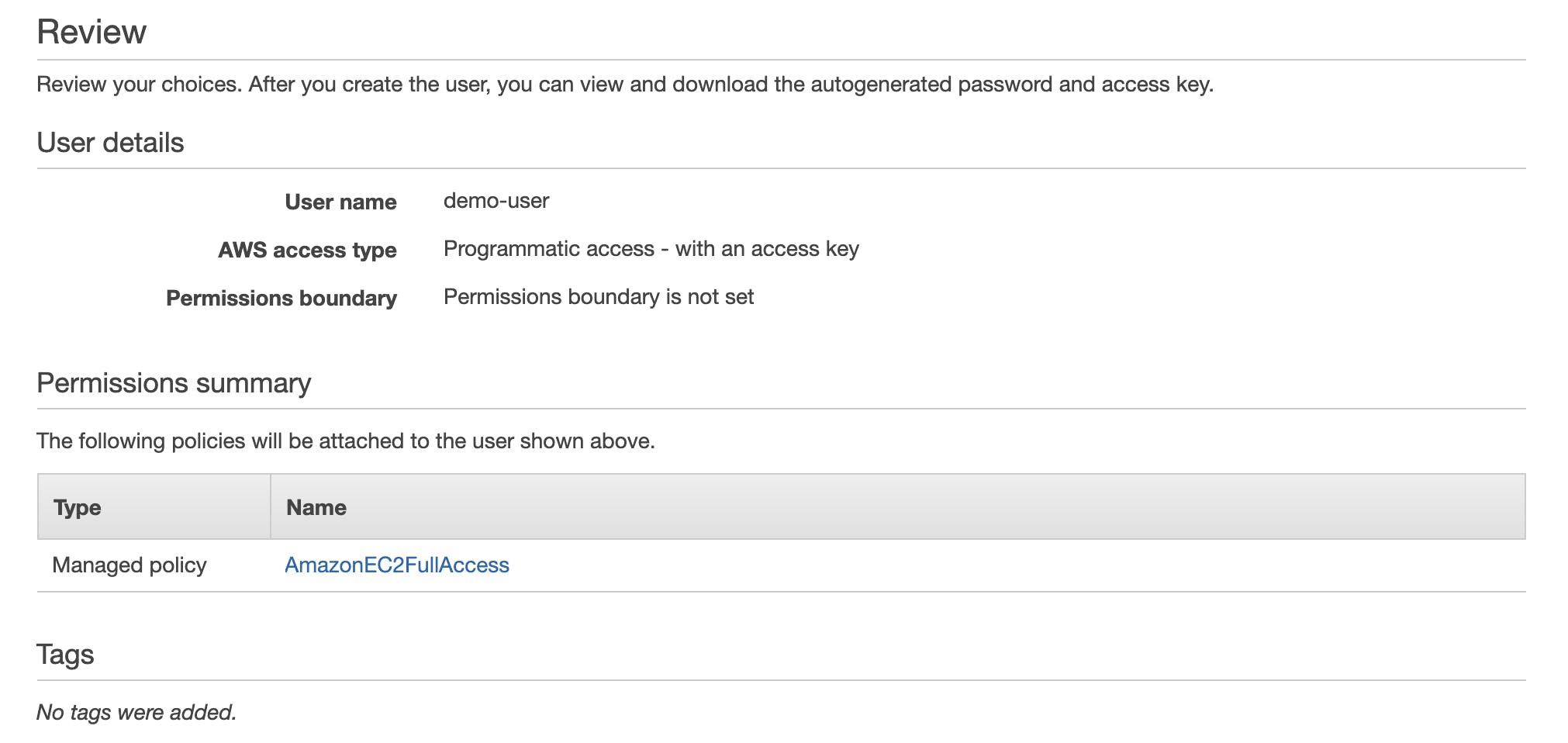
Validate the details and then click the Create user button.
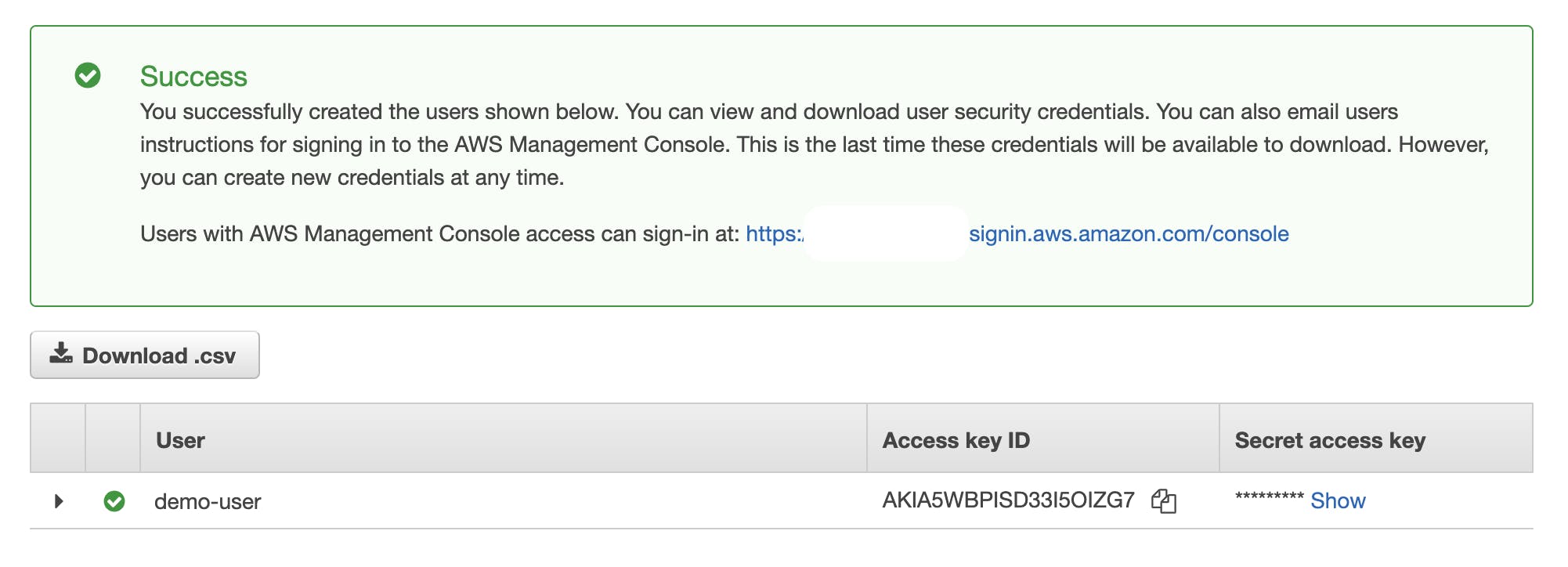
Copy both Access key ID and Secret access key. As the secret key will visible only once, it is advisable to download the .csv file with the credentials.
Configure AWS CLI ver 2.0
Based upon the OS, there are different ways to install AWS CLI.
Post-installation, let us fire the following command on the CLI. This will set up an AWS default profile.
COPY
aws configure
We can also create a specific profile.
COPY
aws configure --profile <profie-name>

Open the Amazon Management Console and log in.
- At the top right corner of the console, click on your username, and then choose "Security Credentials" from the drop-down list.


- Click on the "Access keys (access key ID and secret access key)" section.

- Simply select "Create Access Key."


- You will see both your secret access key and access key ID. Make sure to save the CSV file with your access key information in a safe place after downloading it.


Task-02
Setup and install AWS CLI and configure your account credentials
Install the AWS CLI by following the instructions for your operating system: https://docs.aws.amazon.com/cli/latest/userguide/install-cliv2.html


- Verify the aws-cli version

Open a terminal or command prompt after installing the Amazon CLI, then enter the following command to set up your account credentials:
Your AWS Access Key ID and Secret Access Key must be entered when requested. The access key and secret key from the downloaded csv file should be copied and pasted. Input for your default region and output format will also be requested. Select an appropriate output format and the region that is nearest to your location.

- After setting up your default settings and entering your credentials, you may execute the following command to see if the CLI is operational:


Your default S3 bucket's contents should be listed by this command. Now that the Amazon CLI has been installed and set up, you may set up your account credentials.