Windows Patch Management
Windows patching is essential for closing system and application vulnerabilities and certifying that everything works as it should.
Windows Patch Management
Windows patch management is the process of managing operating system updates for Windows systems, that includes the installation, testing, and deployment of patches to ensure that systems are running at peak performance.
If left unpatched, these vulnerabilities can create entry points for hackers, leading to corporate data leakage and malware infiltration. Windows patch management process ensures your Windows operating systems don’t face security issues or fall prey to malicious third-party patches.
Patch: A patch is a software update released to correct errors, bugs, or security vulnerabilities in computer programs.
Microsoft releases patches to fix vulnerabilities in their software on a regular basis.
Patches are usually released as an update that can be downloaded and installed to update an application or system.
What is Windows Patch Management Policy?
Windows patch management is a process that involves the installation of updates, service packs, and hotfixes on a Windows-based computer system or any Microsoft device.
A Windows patch deployment policy is a set of guidelines that an organization or company uses to determine which patches apply to the systems. It is an automated process to keep your Microsoft devices up-to-date with the latest security patches and bug fixes.
Defining a patch management policy simplifies IT efforts to deploy timely software updates and patches, and it minimizes security risks.
Benefits of Managing Windows Patches
A patch management policy ensures that your software is patched and updated routinely.
It ensures that all patches and updates are systematically executed within a defined time frame that does not clash with the employees’ productive hours.
It helps organizations keep up with various compliance requirements, like HIPAA and GDPR, to avoid audits and fines.
It strengthens customer trust and satisfaction for your products and services.
In Details:
#1 It Ensures Security
Cybersecurity is vital in every context, but especially in a business one where hackers can get access through critical system data through unpatched vulnerabilities. What security updates do is patch existing discovered software flaws in order to restrict the attack surface and properly secure your network infrastructure. With patching no data loss, no identity theft, no business disruption, no lost money, and lack of credibility would happen.
#2 It Supports Productivity
Lower levels of productivity and software that does not work properly are strictly correlated. Patching your software reduces business downtime and frustration among users.
#3 It Helps You Meet Compliance
Compliance, among others, means that you need to have your systems up to date to comply with regulatory bodies and meet compliance standards. An efficient patch management strategy will help you achieve this, as the lack of it can only lead to penalties.
#4 It Enables New Software Features
Users make usually this confusion, that a patch always equals solving a software bug. Sometimes, it might be more than that, as patches can also include new features and functionalities released by Microsoft delivered as patches. Rolling them out will do your system only good, improving the software performance.
Types of Windows Patches
These can be classified into several categories as seen below:
Critical Updates
Security Updates
Microsoft Quality Updates
Updates
Update Rollups
Definition Updates
Feature Packs
Drivers
Tools
Patch Tuesday: Patch Tuesday is a term used to describe the day of the month when Microsoft releases updates for its software. Every patch includes fixes for one or many vulnerabilities that have an assigned CVE (Common Vulnerabilities and Exposures).
Challenges in the Management of Windows Patching
A Proper Timing When Rolling Out Updates
The time it takes a rollout to be deployed can have a direct impact on how users perform their tasks when using machines that run Windows systems, that is why a solution here would be scheduled updates considering several factors like the different time zones and business days users work on.
Configurability Factors
Several things might impact patch management like Windows type, the region, the user group, the network, and so on.
One Place for Windows Patches
It could be challenging to manage all Windows patches like Windows 10, Windows 11, Windows Server in one place, but doing it this way simplifies administration and also supports centralization.
An Easy Windows Patch Management Strategy
Your patch management strategy when implementing Windows updates should be simple and smooth and this can be achieved with an automated tool.
Windows Patch Management Best Practices
Choose an automated patch management solution.
Make sure your patching strategy unfolds in a centralized location – this gives you a better overview of installed and pending patches, endpoints, etc.
Test before applying updates– a patch might cause issues in the organization’s infrastructure, so it should always be verified in a test environment or on a small number of endpoints.
Patch critical and high-risk vulnerabilities as quickly as they are available by implementing a risk-based vulnerability management strategy.
Monitor the status of patches – the best way to do this in an efficient manner is to choose an automated software solution.
Establish a recovery plan. It’s important to have a recovery plan in case something goes wrong – data backup and rollback ability should not be missing.
Vendor trustworthiness – make sure you buy your patch & asset management tool from a trustworthy vendor that facilitates high and continuous maintenance for their products, applies patches in a short timeframe from the release, and makes the process smooth.
Patch Management Life Cycle:ManageEngine
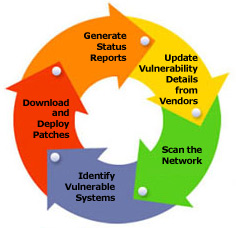
Update Vulnerability Details from Vendors
Scan the Network
Identify Patches for Vulnerabilities
Download and Deploy Patches
Generate Status Reports
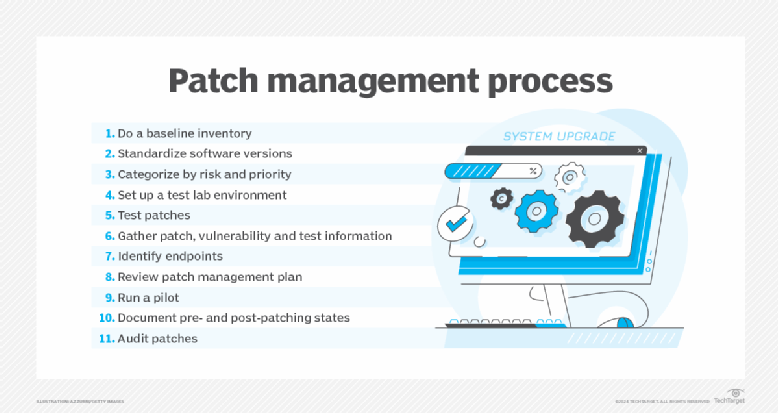
Patch management lifecycle :General
The main stages of the patch management process --
identifying
acquiring
testing
deploying
documenting
inventorying devices, operating systems and applications;
deciding which software versions to standardize on;
categorizing IT assets and patches by risk and priority;
testing patches in a representative lab or sandbox environment;
running a pilot on a sample of devices (an optional step);
validating patches to confirm that they have been installed and to detect systems that are missing patches;
planning the rollout, including identifying who is responsible for it and which patches should be installed on which devices;
Documenting patches, vulnerabilities, test results and deployments, which helps in analyzing and improving the process.
Uninstall patches (patch rollback)
You may want to uninstall a patch that has caused an unexpected conflict with an existing configuration. By uninstalling the patch, you can restore the device to its original state.
To uninstall or roll back a patch
1.Click Tools > Security and Compliance > Patch and Compliance.
2.View the properties for the definition associated with the patch that you want to uninstall by right-clicking the definition and clicking Properties.
3.In the General tab's Detection Rules list, right-click one or more rules and then click Uninstall. If the Uninstall option is grayed out, this option isn't available for this patch and you will need to find another way to uninstall the patch.
4.Click OK.
5.The task settings for the new uninstall task will open. Configure the uninstall task and schedule it to run.
10 stages of the patch management lifecycle
Stage 1: Identification
Before implementing a patch management process, an organization needs a network inventory, which identifies all IT assets on a network. To build a comprehensive network inventory, a team will need to conduct a thorough network inspection using network assessment software.
Stage 2: Prioritization
After conducting a network assessment and understanding the current IT environment, a team can then prioritize vulnerabilities and threats that were uncovered during the inspection. Categorize users and/or systems by risk and priority to create more targeted patching policies in the following steps.
Stage 3: Policies
With users and/or systems effectively categorized, an organization can now create patch management policies. Creating an effective and scalable patching policy is a simple and straightforward process that allows users to set up and manage patching requirements with ease. These patching requirements, or criteria, determine what needs to be patched, when it needs to be patched, and under what conditions to patch.
Stage 4: Monitoring
In this stage, a team will be on the lookout for new patches and vulnerabilities from vendors. Usually, organizations will set up a system to receive notifications about upcoming patches and vulnerability updates from vendors instead of keeping track manually.
Stage 5: Testing
To test patches, an IT team usually uses a test environment that allows them to catch unexpected issues before the patches roll out. Before moving to the next stage in the patching lifecycle, an organization should ensure that patches roll out successfully to the test environment and that the patches operate as they are supposed to.
Stage 6: Modifications
Documentation is tedious, but it’s necessary to keep the entire IT team, and other members within an organization, on the same page. Note any changes about to be made with patches before deployment.
Stage 7: Deployment
Now, it’s time to deploy patches in accordance with the patch management policies established in stage three. This stage will determine whether patches are successful or if changes need to be made.
Stage 8: Audit
Pending or failed patches can sometimes arise after deployment. Monitor these problems closely for incompatibility or performance issues and advise end-users of the issues and upcoming solutions if necessary.
Step 9: Report
A patch compliance report allows execs and other departments to gain insight into your current IT infrastructure and how patching affects it. Ideally, a patch compliance report should be generated every month.
Step 10: Repeat
The final stage of the patch management lifecycle is to review, update, and repeat steps one through nine. This will keep information up-to-date and accurate, allowing an IT team to refine and optimize all patch management processes.